Getting started

Seven short steps from signing up to your first paid invoice. Most garages are done in 15 minutes.

Sign in to your workshop

Go to your workshop’s address, for example yourgarage.rampworks.app, and sign in with the username and password you chose when you signed up.

Forgotten the address? Use Sign in on this website and type your garage’s name. Tip: bookmark the page on the office computer.
Add your business details

Open Settings in the menu and fill in:

  • Business details: name, address, phone and email. These are printed on your invoices.
  • VAT: tick “We’re VAT registered” and add your VAT number, if you are.
  • Prices: your labour rate per hour, and a parts mark-up if you want prices suggested for you.

Press Save settings. You can change any of this later.

Add your mechanics

Open Staff and press Add someone. Give each person their own username and password, so you can see who did what.

Mechanics can book jobs and log their work. Only admins see the money: profit, reports and settings.

Book in your first job

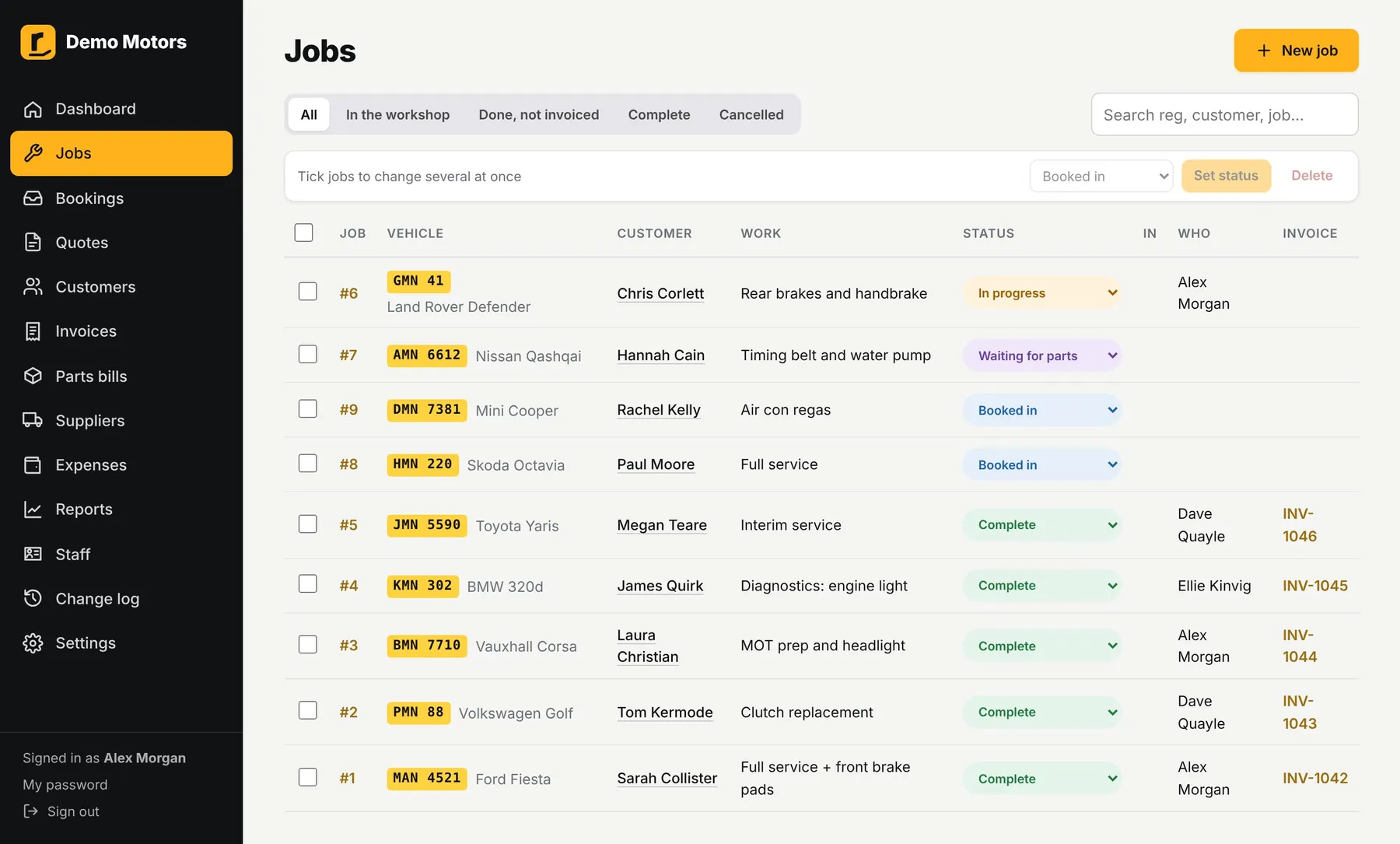
Open Jobs and press Book a job in. Type the customer’s name and phone number, the car’s registration, and what needs doing, then press Book job in.

No need to set up customers first: they’re saved as you go, and pop up next time you start typing their name.

Book in your first job

Add the hours and parts

Open the job and add the Labour (who did it and how many hours) and the Parts you fitted. Change the status as the job moves along, for example to “In progress”, then “Complete” when the car is ready.

Doing a service? Tick through the Service checklist on the job (Workshop and Pro plans). It prints with the invoice.

Send the invoice

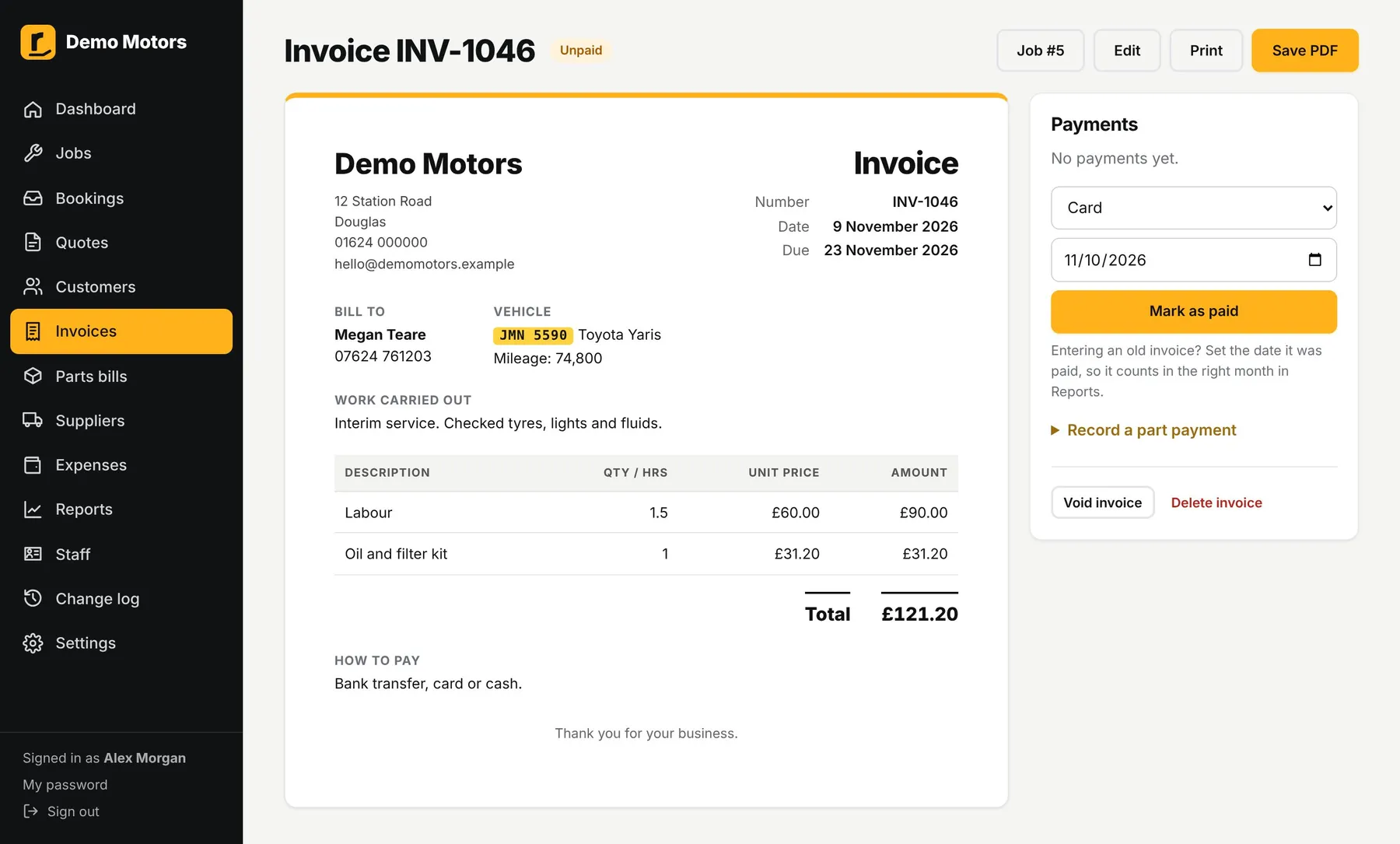
On the job, press Invoice. The labour and parts come straight across, so there’s nothing to type twice. Press Print or Save PDF to give it to the customer.

When they pay, press Mark as paid (or Record payment for part payments). The dashboard shows who still owes you money.

Send the invoice

Put it on your phone

Open your workshop’s address on your phone, then:

  • iPhone: in Safari, tap the Share button, then Add to Home Screen.
  • Android: in Chrome, tap the ⋮ menu, then Add to Home screen or Install app.

It opens like any other app. Your mechanics can do the same.

Good to know

Keep your account safe

Turn on two-step sign-in under My account: you’ll type a code from your phone as well as your password. Admins can ask everyone to use it in Settings.

Your data is yours

Download everything any time from Settings → Export your data.

Not signed up yet?

Set up your workshop